Quick Summary: What a Free Online 3D Viewer Helps You Do
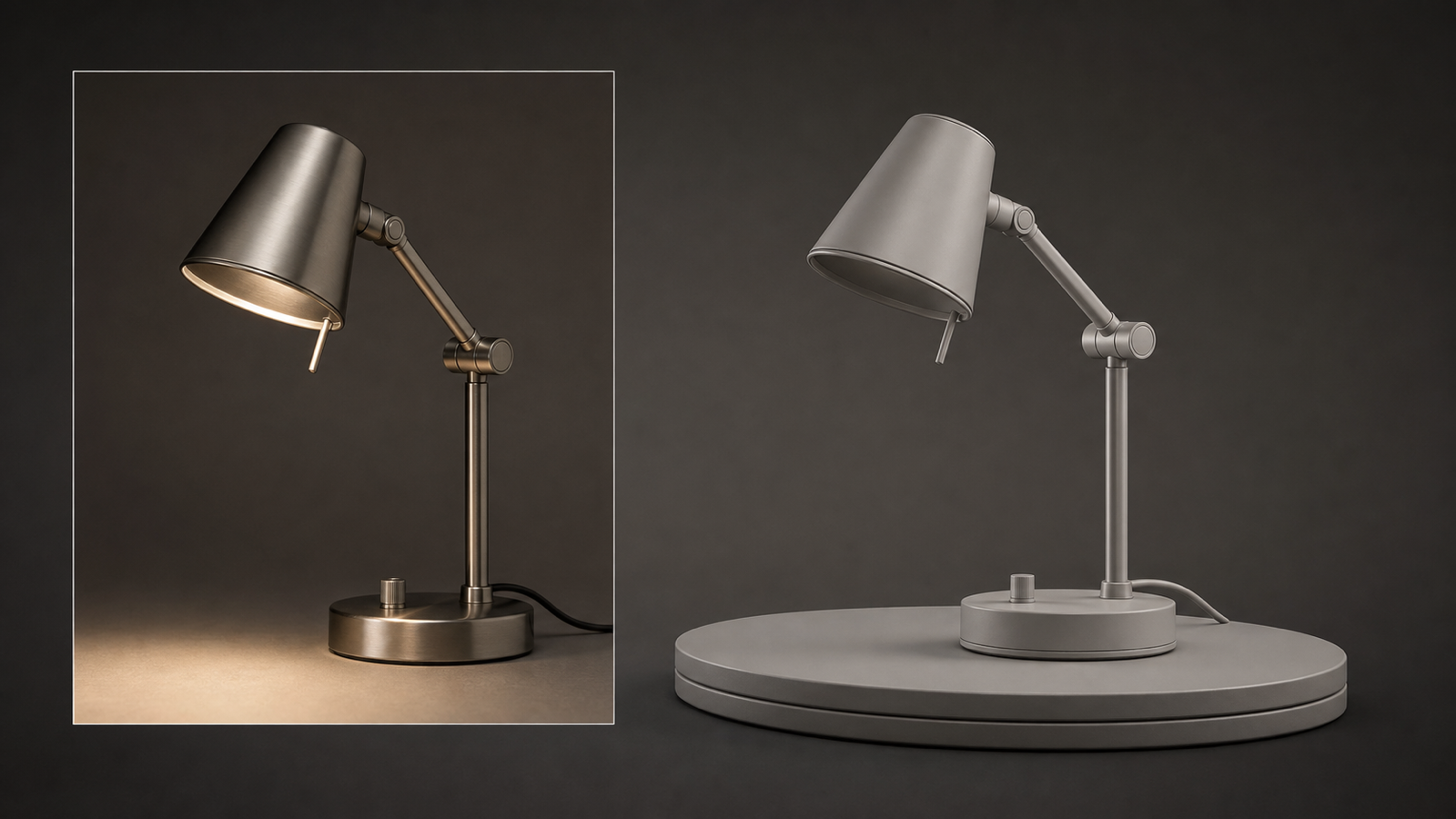
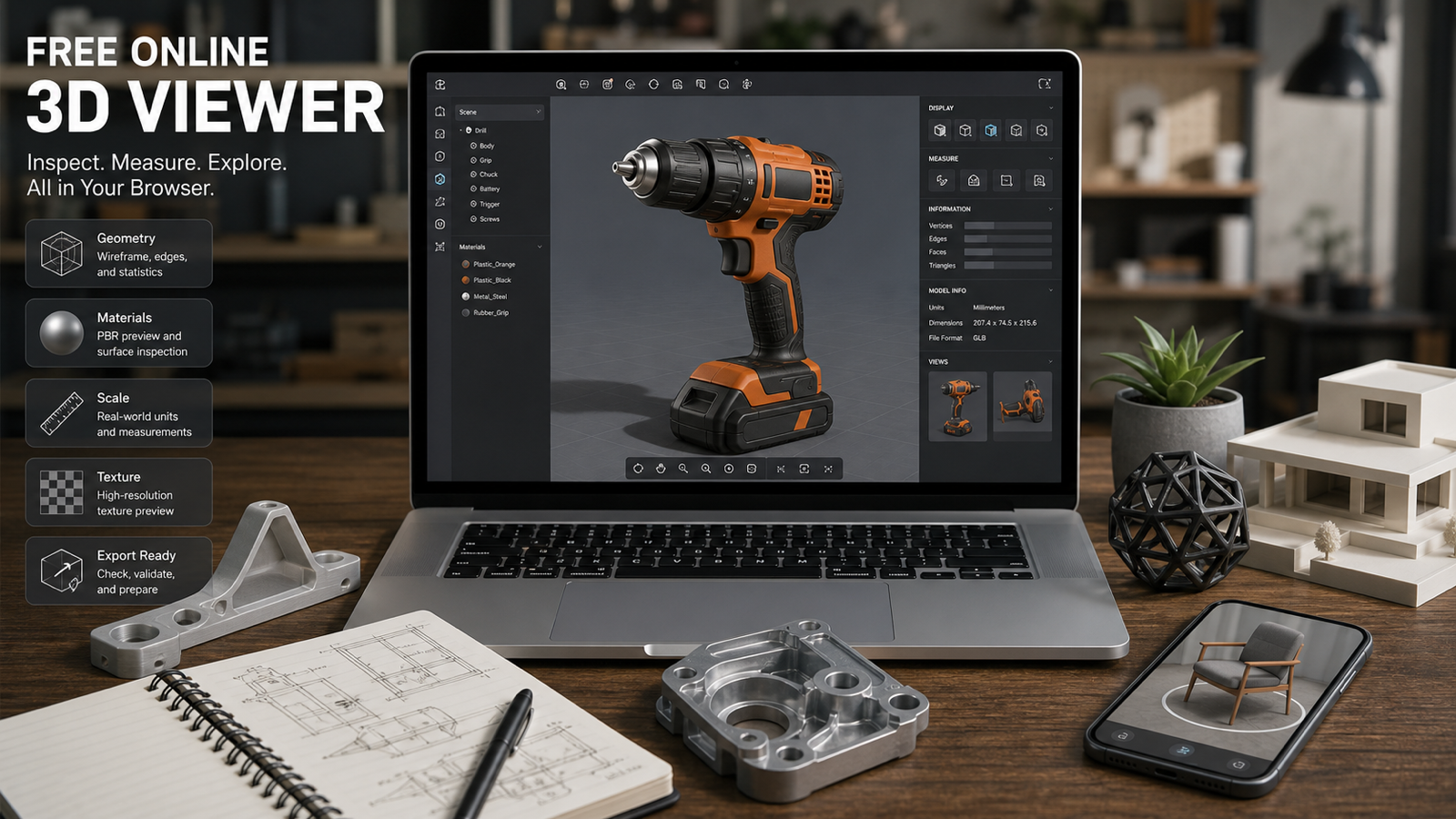
A free online 3D viewer is useful when you need to open 3D model files online, preview the shape, and check obvious issues before sending the asset into another workflow. Instead of installing Blender, a CAD viewer, a slicer, or a format-specific desktop app just to look at one file, you can use a browser based 3D model viewer to rotate, zoom, pan, and review the model quickly.
For this guide, the main recommendation is See 3D AI's Free Online 3D Model Viewer. It is positioned as a browser viewer for common 3D and CAD formats, and See 3D also provides format-specific pages for users searching by file type, including OBJ Viewer, STL Viewer, GLB Viewer, GLTF Viewer, and STEP Viewer.
Use the viewer as a first-pass inspection tool, not as a promise that a model is ready for production. Before publishing, printing, selling, or handing off a file, verify the live See 3D pages for supported formats, upload limits, account requirements, privacy terms, pricing, file handling, export options, and commercial-use rules.

When to Use a Free Online 3D Viewer Instead of Desktop 3D Software
Use a free online 3D viewer when the job is inspection, not heavy editing. A student may need to confirm that an OBJ file opens correctly before submitting a class project. A maker may want to preview an STL file before moving it into a slicer. An ecommerce team may need to check whether a GLB or GLTF asset displays with the expected materials before a product page review.
The main advantage is speed. You can view 3D models in browser, share a simple review workflow with teammates, and catch basic problems before opening a full 3D package. This is especially helpful when the person reviewing the file is not the person who created it.
Good use cases include:
- Previewing downloaded 3D assets before importing them into a project.
- Checking whether a model appears complete, centered, and oriented correctly.
- Reviewing an STL file before more serious 3D-print preparation.
- Opening OBJ, GLB, GLTF, or STEP files when you only need a visual check.
- Looking at an AI-generated model draft before cleanup in Blender, CAD software, a game engine, or another professional tool.
An online 3D file viewer is less suitable when you need precise CAD validation, mesh repair, print simulation, material authoring, rigging, animation editing, or production rendering. In those cases, use the viewer to triage the file first, then continue in the specialized tool that matches the job.

How to Upload, Rotate, Zoom, Pan, and Inspect a 3D Model Online
The basic workflow is simple: open the viewer page, upload the model file, then inspect it from several angles. In See 3D, start with the Free Online 3D Model Viewer or choose a format-specific entry page such as the OBJ, STL, GLB, GLTF, or STEP viewer if you already know the file type.
After the file loads, check the model in a practical order:
- Rotate the model to inspect the front, back, sides, top, and underside.
- Zoom in on small details, edges, seams, surface transitions, and thin parts.
- Pan around the scene so you can inspect details without losing orientation.
- Look for missing geometry, broken surfaces, flipped parts, or strange scale.
- If the model has materials or textures, check whether they appear as expected.
- Decide whether the file is good enough for sharing, or whether it needs cleanup first.
For beginners, the most important habit is to inspect the model as if it will fail somewhere. A quick front-facing preview can hide holes, floating fragments, disconnected parts, backwards surfaces, or material problems. A careful rotation pass often reveals issues that a thumbnail cannot show.
If the viewer page mentions upload size, no-sign-up access, supported formats, or browser compatibility, treat those as live platform details. They may change, so verify them directly on See 3D before writing final documentation for a team or client.

Common 3D File Formats: OBJ, STL, GLB, GLTF, STEP, and More
Choose the viewer page that matches the format and the purpose of the file. See 3D's viewer pages currently describe support for a broad set of common formats, including OBJ, FBX, USDZ, STL, GLB, GLTF, 3MF, PLY, VOX, DXF, DAE, 3DS, 3DM, STEP, and STP. Because supported formats and limits can change, confirm the current list on the live Free Online 3D Model Viewer before publishing exact claims.
Here is a practical way to think about the most common searches:
| Format | Common use | What to inspect first |
|---|---|---|
| OBJ | General mesh exchange, model previews, education, asset review | Geometry, material references, missing texture links |
| STL | 3D printing workflows and simple mesh handoff | Surface integrity, scale, wall thickness clues, orientation |
| GLB | Web, AR, ecommerce, and compact 3D asset delivery | Materials, textures, file display, visual completeness |
| GLTF | Web 3D and scene-based asset workflows | Texture paths, material behavior, scene organization |
| STEP / STP | CAD-style product and engineering exchange | Overall part shape, orientation, and whether the file loads for review |
An OBJ viewer online is useful for checking mesh shape and texture references. An STL viewer online helps with first-pass 3D printing preview, although print readiness still depends on slicer and mesh-repair checks. A GLB viewer or GLTF viewer is helpful when you care about web display and materials. A STEP viewer can help with a quick CAD-style preview, but it should not replace engineering validation.
The best format is not universal. It depends on whether the next step is printing, web display, AR preview, game asset review, ecommerce visualization, or further modeling.

Use Image to 3D or Text to 3D, Then Review the Draft
If you do not have a model yet, See 3D also offers Image to 3D and Text to 3D pages for creating 3D drafts. This is useful for concepting, early visualization, asset ideation, and quick exploration before a more technical pass.
Treat AI-generated 3D models as drafts. A model that looks promising in a browser preview may still need cleanup before it is used in production. Common follow-up work can include mesh cleanup, retopology, material adjustment, texture repair, scale correction, print preparation, collision setup, or export testing.
A practical AI 3D workflow looks like this:
- Generate the first model from an image prompt or text prompt.
- Open the result in a free 3D model inspection tool.
- Rotate and zoom to check whether the silhouette and major forms are usable.
- Inspect geometry and materials for obvious problems.
- Move the file into Blender, CAD software, a slicer, a game engine, or another professional tool when cleanup is needed.
This draft-first mindset is important for ecommerce teams, designers, AR creators, and game asset reviewers. The viewer helps you decide whether the model is worth refining, but it should not be treated as proof that the asset is commercially cleared, technically precise, printable, or production-ready.

3D Model Review Checklist, FAQ, and Next Steps
Before you share, print, render, or import a model, run a short readiness checklist. This makes the viewer more useful because you are not just looking at the model; you are deciding what the next tool needs to handle.
3D model review checklist
- Geometry: Does the model load as a complete object without missing parts or obvious broken surfaces?
- Orientation: Is the model upright and easy to understand from the expected viewing angle?
- Scale: Does the size look plausible for the intended use, even if final measurement must be confirmed elsewhere?
- Materials: Do colors, surface types, and material assignments look close to what you expect?
- Textures: Are image-based details present, aligned, and not visibly missing?
- Print readiness: If this is for 3D printing, does it need slicer checks, repair, support planning, or wall-thickness review?
- Web or AR readiness: If this is for web, ecommerce, or AR, do GLB or GLTF materials and textures display correctly enough for the next test?
- CAD review: If this is a STEP or STP file, does the preview support a basic visual check before deeper CAD validation?
- Rights and terms: If the model is commercial, AI-generated, downloaded, or client-facing, have you checked usage rights and platform terms?
FAQ
What is the best free online 3D viewer for quick previews?
For a practical browser workflow, See 3D's Free Online 3D Model Viewer is a strong starting point because it is organized around opening and inspecting common 3D files online. Verify current format support, upload limits, and access requirements on the live page before publishing.
Can I open an OBJ file online without installing software?
Yes, an OBJ viewer online can help you preview an OBJ file in the browser. Check geometry, material references, texture appearance, and missing components before importing the model into a larger workflow.
Is an STL viewer online enough for 3D printing?
An online STL preview is useful before printing, but it is not a complete print-readiness check. Use it to inspect shape, orientation, and obvious mesh issues, then use a slicer or mesh-repair tool for wall thickness, supports, manifold checks, and printer-specific settings.
Can I preview GLB and GLTF files for web or AR?
Yes, a GLB or GLTF viewer can help you check whether a web or AR asset displays visually as expected. However, final readiness still depends on the target platform, file size, material compatibility, texture handling, and device testing.
Should I use an online viewer for confidential 3D files?
Be cautious with confidential, client-owned, patented, or unreleased assets. Before uploading sensitive files, review See 3D's Privacy Policy, Terms & Conditions, subscription terms, and any live file-handling notes on the viewer page.
Conclusion
A free online 3D viewer is best used as a fast inspection step between receiving a 3D file and committing it to printing, rendering, AR preview, ecommerce display, game asset review, or further editing. See 3D AI gives beginners and teams a convenient browser-based starting point, with viewer pages for common formats and related Image to 3D and Text to 3D workflows. Keep the workflow practical: open the file, rotate it, zoom into details, inspect geometry and materials, then verify the live platform terms and move the model into the right specialist tool when precision or production readiness matters.