Free Text to Image AI for 3D Design References
Turn a written idea into a clear 2D reference for your next 3D model. Describe the shape, materials and viewing angle to explore characters, products or props before modeling.
Text to Image Examples for 3D Concept Design
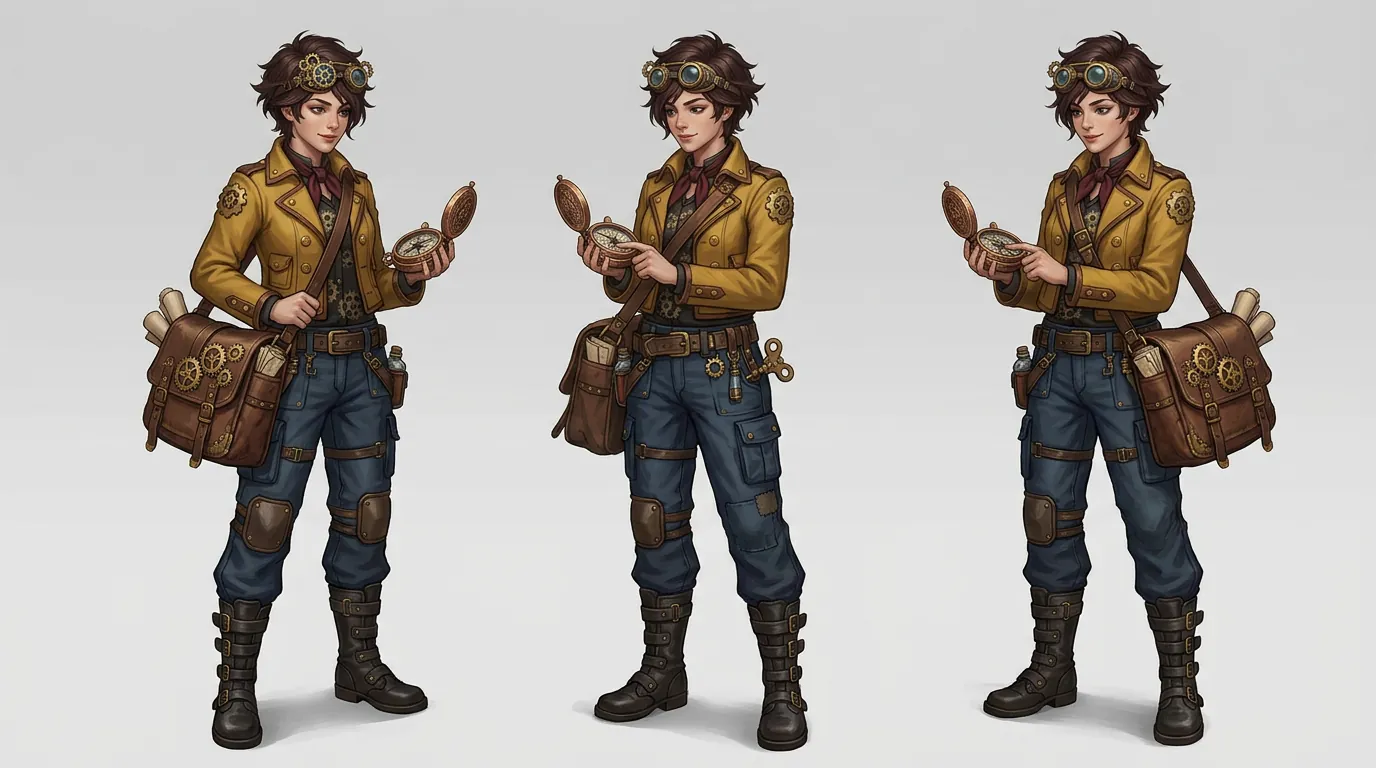
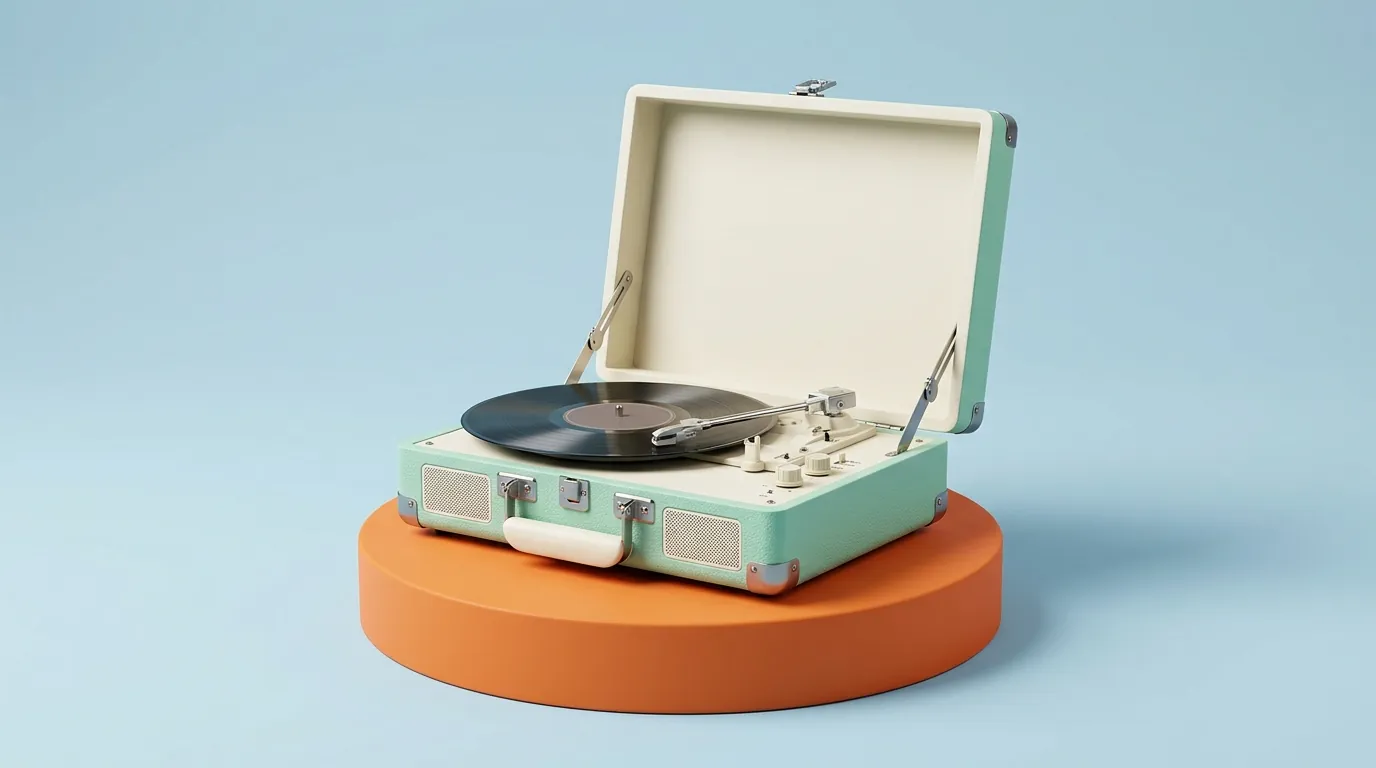
Use these character and product concepts to study silhouette, materials and framing. For a modeling reference, request a complete subject, simple background and even lighting.
Text to Image Tools for Clearer 3D References
Guide the image model toward a readable design reference. Focus the prompt on the object and the details you want to develop in 3D.
Define the shape and proportions
Describe the outline, major parts and proportions of your subject. A clear silhouette gives you a useful starting point for planning a 3D model.
Explore materials and surface details
Specify a finish such as matte plastic, brushed metal or painted wood. Use the generated image to discuss appearance before creating 3D materials.
Choose a useful view and background
Request a front or three-quarter view, a complete subject and a plain background. Even lighting can make edges and forms easier to inspect.
Select model and image settings
Choose an available image model, aspect ratio, resolution and output count. Options and credit costs vary by model; review them before generating.
Plan Your 3D Model with AI Reference Images
Use image drafts to clarify a design direction before spending time on geometry and materials. Compare the results and keep the strongest reference.
Start without a source photo
Create a visual starting point from a written 3D design brief, even when the object or character has not been photographed or drawn.
Compare design directions
Explore variations in shape, color or material. Change one part of the prompt at a time to make the results easier to compare.
Prepare a reference for Image to 3D
Choose an image with a complete, clearly visible subject. Review its proportions and details before using it as input on the Image to 3D page.
Review drafts and generation costs
Check the displayed credit cost before submitting. Review your images in Create and use what you learn to focus the next prompt.
Text to Image References for Characters, Products and Props
Develop concept images for a 3D modeling brief, a team review or an image-to-3D workflow. Each result is a 2D design reference.
Character references for 3D modeling
Describe a full-body character with a readable pose, outfit and proportions. Check limbs and accessories before using the concept to guide a 3D character model.
Product concepts and material studies
Visualize a product with a defined shape and finish. Compare image concepts before deciding which proportions and materials to develop in 3D.
Game props with clear silhouettes
Generate a single prop such as a lantern, chest or tool against a simple background. Use its outline and major details to plan a 3D game asset.
Furniture references for interior design
Describe a chair, sofa or cabinet from a useful angle. Use the image to explore form and materials, then establish dimensions in your modeling software.
How to Create a 3D Reference with Text to Image
Sign in, describe one subject and select your image settings. Check the credit cost, generate a draft and review it before modeling or using Image to 3D.
1. Describe the shape, materials and viewing angle
2. Select a model and settings, then check credits
3. Generate and choose a reference for your 3D model
Text to Image FAQ for 3D Design
Learn how to write reference-image prompts, review your results and use them in a 3D workflow.


