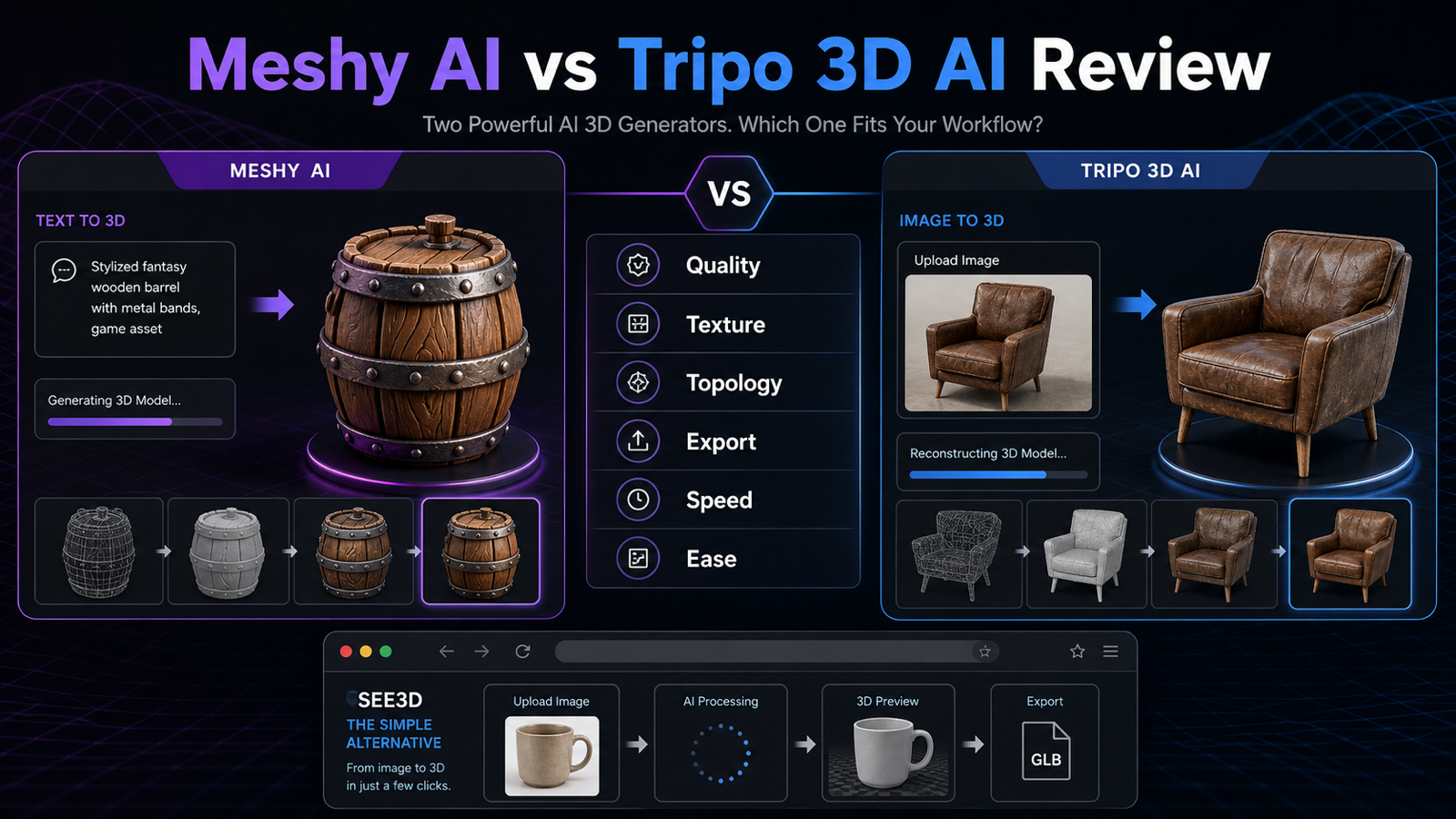
If you are comparing Meshy AI vs Tripo 3D AI, the practical answer is not “which one is universally better.” Meshy may fit creators who want a broader AI 3D creation platform with text-to-3D, image-to-3D, texturing, remesh, animation, API, and pipeline features. Tripo may appeal to users who want fast, iterative 3D generation, especially image-to-3D and API-driven workflows. For readers who mainly want to upload an image, generate a 3D model, preview it, and download it quickly, See3D Art is a lighter browser-based alternative worth testing first.
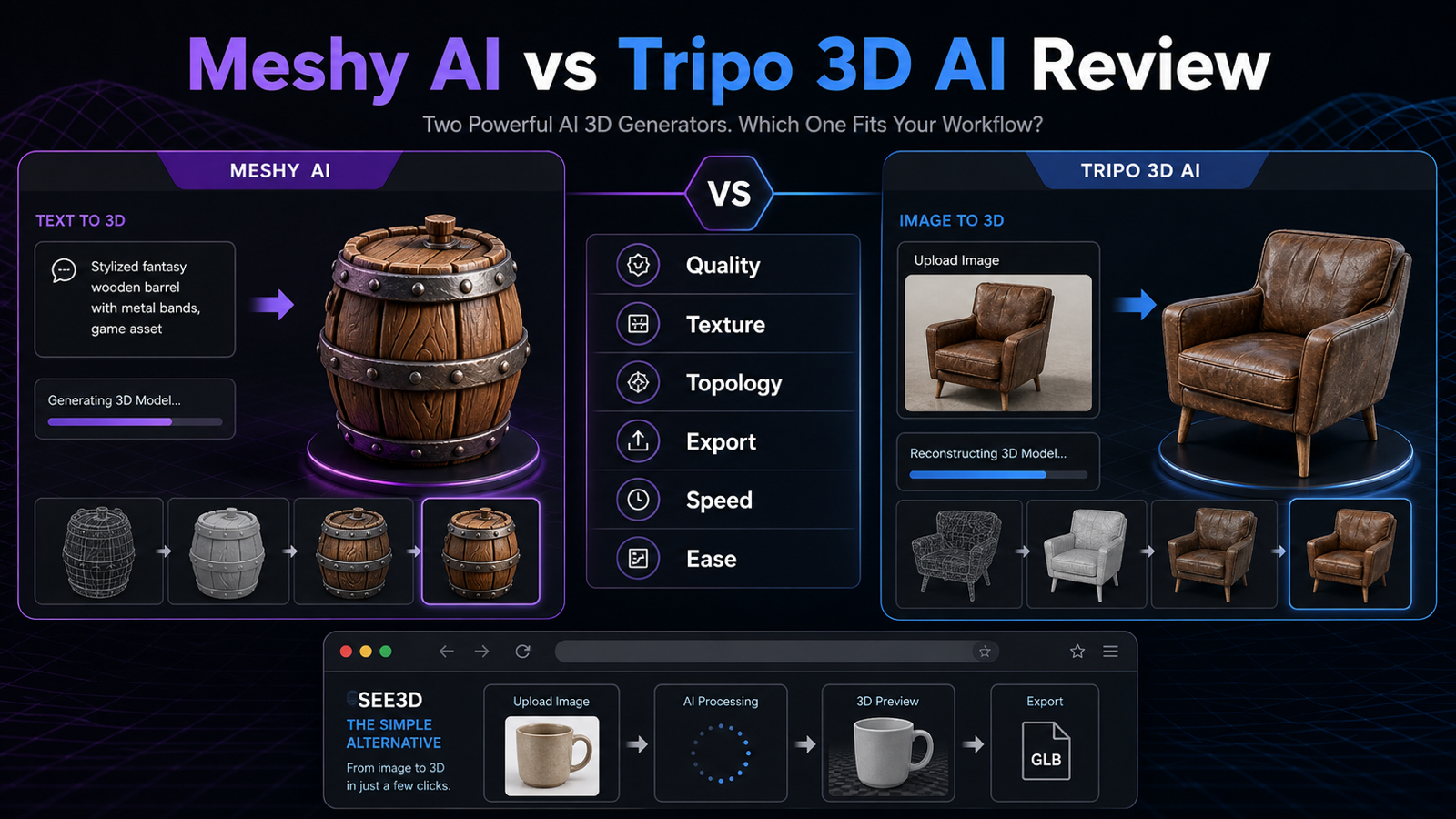
Quick Summary
This Meshy AI vs Tripo 3D AI review compares both tools by workflow, image-to-3D quality, text-to-3D quality, geometry, topology, texture detail, prompt following, export usability, editing needs, speed, pricing, credits, learning curve, and best use cases.
The short version: choose Meshy if you want a wider AI 3D platform, choose Tripo if you want rapid generation and iteration, and try See3D Art Image to 3D or See3D Art Text to 3D if you want a simpler browser workflow before committing to heavier tools.
Key Takeaways
- This AI 3D model generator comparison review is best read as a workflow guide, not a permanent ranking.
- Meshy may fit users searching for the best AI 3D model generator Meshy or Tripo when they want a broader creation platform with more surrounding tools.
- Tripo may fit readers looking for a Tripo AI image to 3D review, fast iteration, API workflows, and practical Tripo 3D AI pros and cons.
- See3D Art is a useful Tripo 3D AI alternative and Meshy alternative for users who want a simpler browser-based AI 3D model generator.
- Game developers should treat any AI 3D generator for game assets as a drafting tool until the model is cleaned, optimized, and tested in-engine.
- Product teams should judge image to 3D model for product visualization by proportion accuracy, material cleanup needs, export reliability, and brand-safe review.
What Changed in AI 3D Model Generator Workflows in 2026
AI 3D model generator tools are improving quickly, so any comparison should be treated as a snapshot rather than a permanent ranking. Model versions, pricing, credit costs, export formats, commercial rights, queue speed, privacy rules, and public/private generation settings can change with little notice.
For this review, the safest way to compare Meshy and Tripo is by workflow fit. A creator building concept props needs different trade-offs than an indie game developer preparing Unity assets, a product designer testing shapes, or an e-commerce team turning product photos into interactive previews. In every case, the generated model should be inspected and cleaned before serious production use.
If you are reading a Meshy 6 vs Tripo H3.1 review, check the publication date and the exact model version before applying the conclusion. A useful Meshy AI and Tripo 3D AI review should tell you what was tested, what changed recently, and what still needs verification in your own pipeline.
Meshy AI vs Tripo 3D AI: The Main Workflow Difference
Meshy feels more like a broad AI 3D production platform, while Tripo feels more oriented around fast model generation and iteration. Meshy’s official help materials describe text-to-3D, image-to-3D, text-to-texture, PBR map support, style options, API integration, and multiple export formats. Tripo’s official OpenAPI docs describe text and image inputs for 3D model generation, multiple model-generation endpoints, mesh editing tasks, rigging tasks, texture tasks, and format conversion.
That makes the Meshy vs Tripo AI 3D generator comparison less about one winner and more about repeated work. Meshy may be more attractive if you want a single place to generate, texture, remesh, animate, and connect to tools like Blender, Unity, Unreal Engine, Maya, or 3ds Max. Tripo may be more attractive if your workflow is “try an image, generate a model, adjust parameters, convert, and iterate.”
See3D Art sits in a different lane. Its image-to-3D page emphasizes a simple flow: upload an image, let the system analyze and generate the model, preview it online, then download it. Its text-to-3D page focuses on prompt input, generation modes, low-poly options, and PBR-style material output. That is useful when the goal is not to learn every advanced platform control on day one.
For a Meshy Tripo comparison for 3D creators, this split matters. Artists often care about texture quality and editability, developers care about topology and import behavior, and beginners care about whether the workflow is understandable without reading several docs pages first.
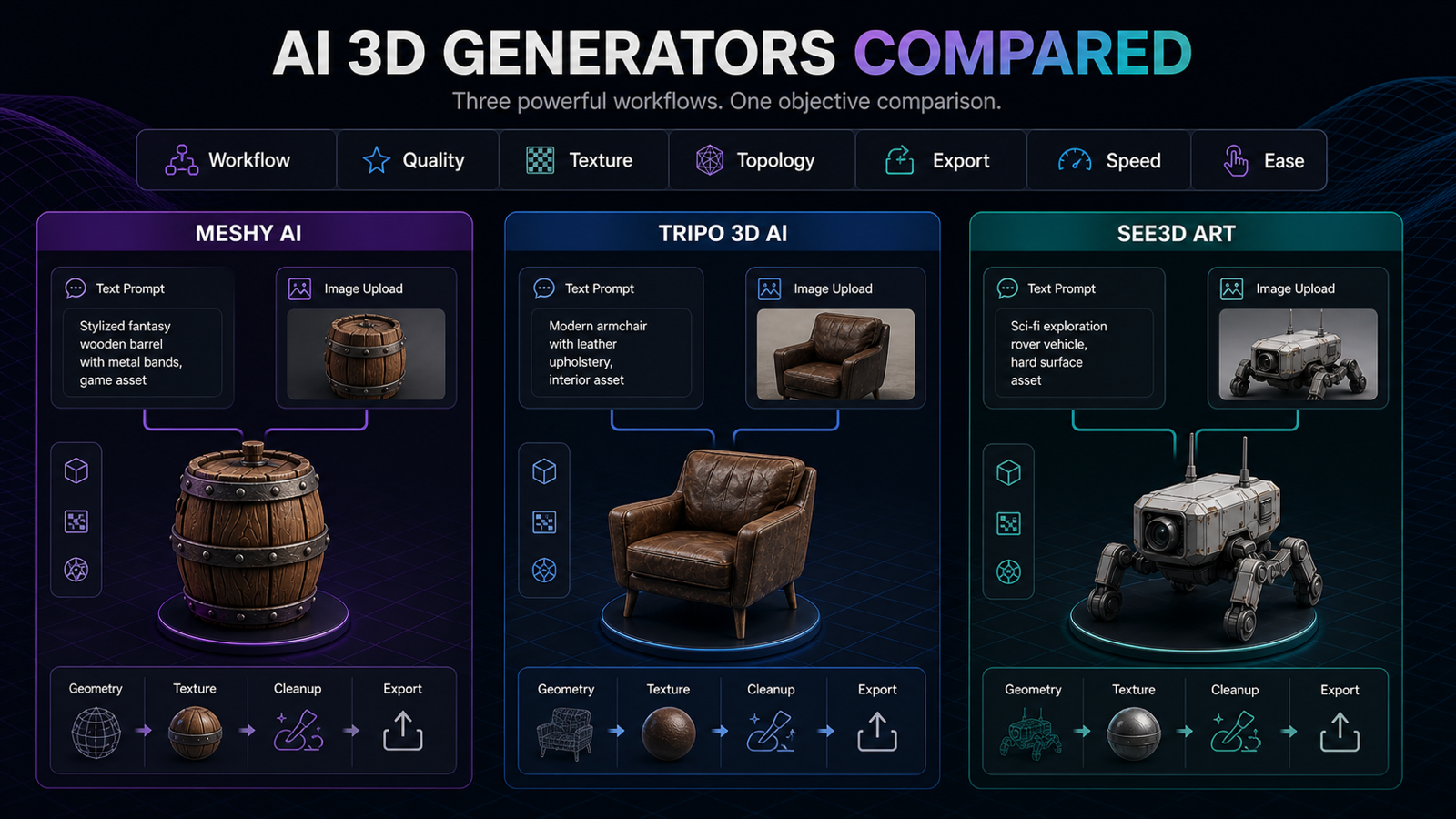
Image to 3D AI: Which Tool Is Better for Photos and Product References?
For image-to-3D, Tripo often appeals to users who want fast image-led iteration, while Meshy may appeal to users who want image generation, texturing, remeshing, and downstream platform tools in the same broader ecosystem. This is editorial judgment, not a lab benchmark, because image-to-3D quality depends heavily on the source image.
A single clean product image with a visible silhouette, simple background, and clear material cues will usually produce a more usable draft than a cluttered image with reflections, occlusion, text, hands, or cropped edges. This matters whether you use Meshy, Tripo, See3D, or another photo to 3D model AI tool.
For e-commerce teams, the main question is whether the model preserves recognizable proportions and surface cues. For game developers, the question is whether the mesh can be decimated, retopologized, textured, and imported without causing performance or UV problems. For beginners, the question is simpler: can you get from image input to a previewable model without fighting the interface?
Use See3D Art Image to 3D when you mainly need a browser-based image to 3D model converter for first drafts, product visualization tests, or a quick single image to 3D model generator workflow. Use Meshy or Tripo when you want deeper iteration, API control, or more advanced post-processing options.
This is also where Tripo AI vs simpler image to 3D tools becomes a fair question. Tripo can make sense for repeat experimentation, while See3D Art can make more sense when the main job is a quick AI image to 3D workflow with fewer controls to learn.
Text to 3D AI Model Generator Quality: Prompt Following and Shape Control
Text-to-3D is harder to judge than image-to-3D because the model has to invent both structure and appearance from language. A vague prompt like “make a cool fantasy chest” may generate something appealing, but it may miss scale, silhouette, material, polygon style, or use-case constraints.
Meshy’s text-to-3D workflow is useful when you want a broader creation platform around the prompt, especially if you plan to texture, refine, remesh, or export through a production pipeline. Tripo’s text-to-model workflows are useful when you want to generate many alternatives quickly and evaluate which one is worth editing further.
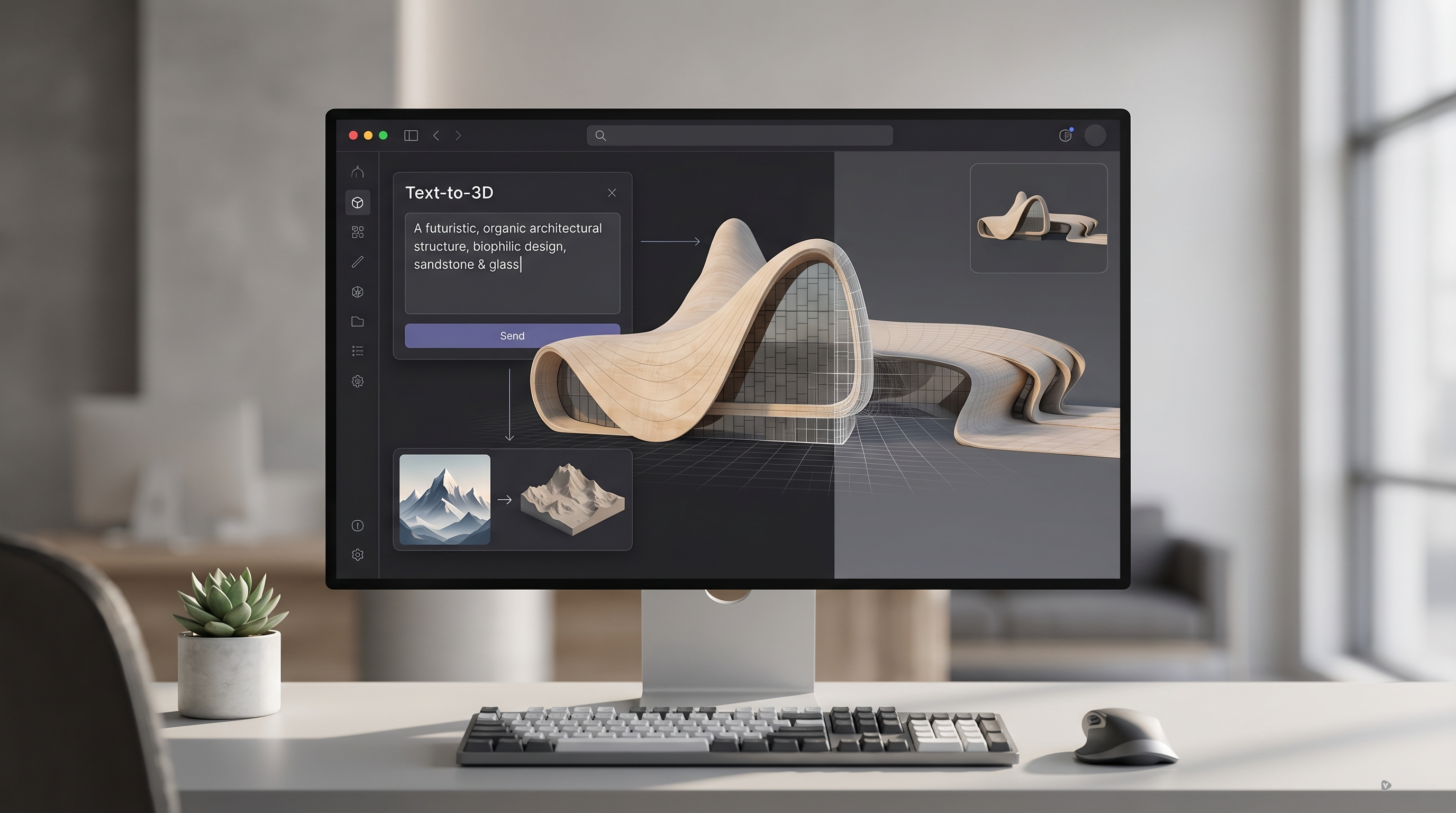
See3D Art’s text-to-3D AI model generator is better framed as a lighter starting point. It is useful for beginners, concept artists, and teams who want to test a prompt-to-3D model generator online without getting buried in deeper platform choices too early.
Reusable Test Prompt Formula
Use the same prompt structure across tools when comparing output. This reduces the chance that one platform looks better simply because it received a clearer prompt.
Create a 3D model of [object/character/prop]. Style: [realistic / stylized / low-poly / game-ready / product render]. Shape details: [silhouette, proportions, key parts]. Material details: [wood, metal, fabric, plastic, glass, ceramic]. Texture details: [roughness, wear, patterns, color]. Use case: [game asset / product mockup / 3D printing draft / AR preview / concept art]. Output should have clean geometry, readable silhouette, balanced proportions, and editable structure.
Copy-to-Use Benchmark Prompts
- Create a 3D model of a small leather travel backpack with rounded corners, zipper pockets, stitched seams, brass buckles, dark brown worn leather texture, realistic product visualization style, clean geometry, suitable for e-commerce display.
- Create a stylized fantasy treasure chest for an indie game, chunky proportions, metal corner guards, carved wooden panels, glowing blue gemstone lock, hand-painted texture style, low-poly but detailed enough for close-up viewing.
- Create a 3D model of a ceramic coffee mug shaped like a cat, rounded body, small ears, curved tail handle, glossy white ceramic material, subtle pink nose detail, clean product mockup style.
- Create a sci-fi drone prop, compact circular body, four small rotors, black carbon fiber shell, glowing cyan light strips, modular mechanical details, game asset style, clean silhouette, suitable for importing into a 3D scene.
- Create a cartoon mushroom house, red cap roof with white dots, small round windows, wooden door, mossy base, cozy fantasy style, colorful hand-painted textures, suitable for a mobile game environment.
- Create a realistic running shoe model, breathable mesh upper, rubber sole, layered panels, black and neon green colorway, visible stitching, product visualization style, clean edges and accurate proportions.
- Create a low-poly medieval market stall, wooden frame, cloth canopy, baskets of fruit, crates, small signs, warm stylized texture, optimized for a game environment.
- Create a 3D model of a modern desk lamp, slim metal arm, circular base, matte black finish, warm glowing light panel, clean industrial design, suitable for interior visualization.
- Create a cute robot assistant character, rounded white body, small screen face, short arms, wheel base, soft blue accent lights, Pixar-like friendly proportions without copying any existing character.
- Create a realistic perfume bottle, transparent glass body, gold cap, pale pink liquid, elegant label area without readable text, luxury product render style, clean reflections and simple geometry.
Geometry, Topology, and Texture Detail: What to Inspect Before Export
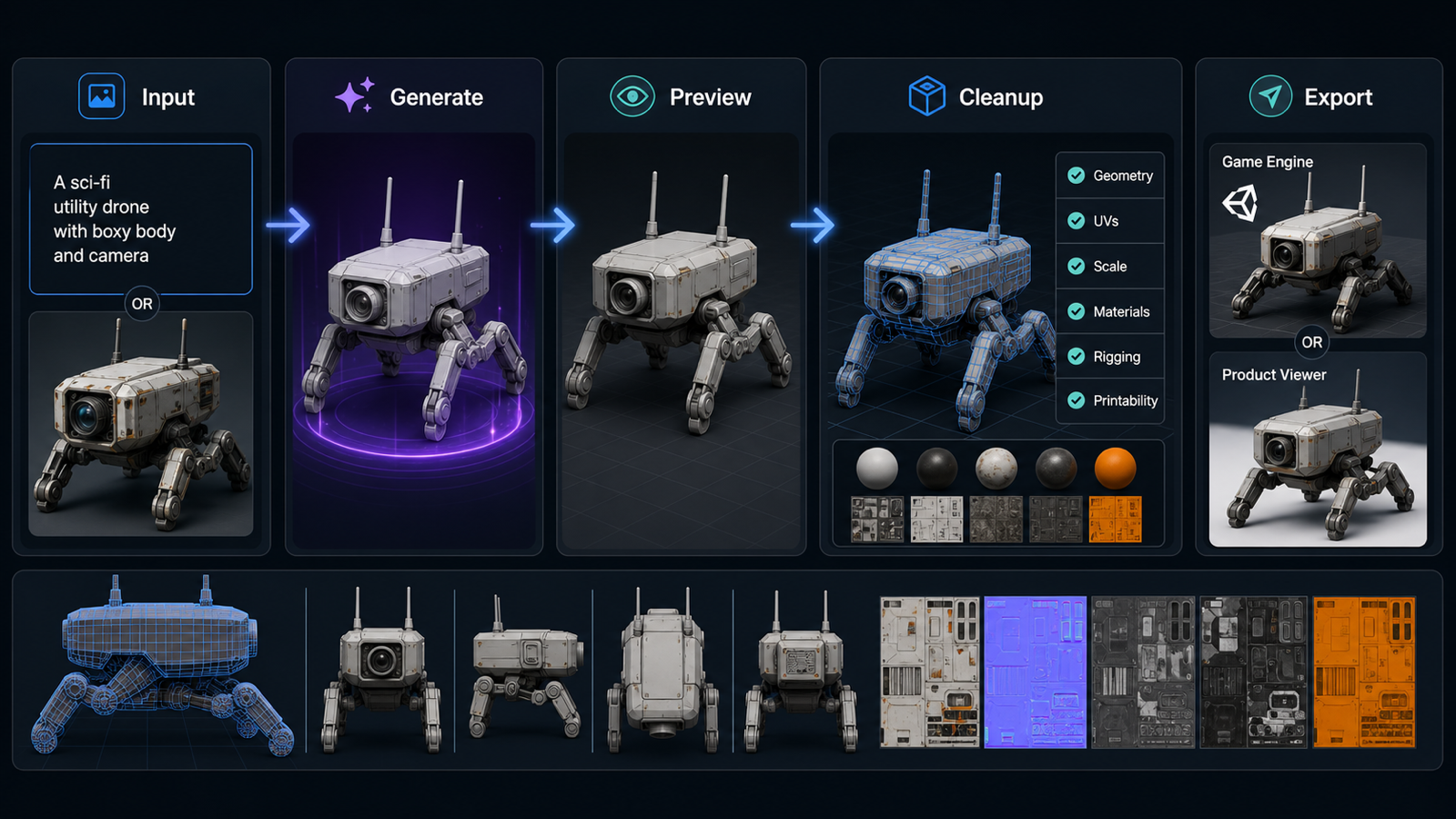
The most important quality check is not whether the first preview looks impressive. It is whether the geometry, topology, UVs, textures, and scale can survive the next tool in your workflow.
Inspect the model from front, side, back, top, and bottom. Check whether the silhouette is readable, the proportions match the brief, thin parts are connected, hollow areas make sense, and the underside is not collapsed. Then look at topology: AI-generated meshes may be dense, uneven, triangulated, or difficult to rig. Some tools offer remeshing, low-poly modes, quad conversion, or face limits, but you should still review the result in Blender, Unity, Unreal Engine, Maya, 3ds Max, or another 3D editor.
Texture detail needs the same caution. A preview render can look convincing while the texture map is stretched, baked with lighting, missing material separation, or unsuitable for your engine. Meshy’s docs mention PBR maps and texture options, while Tripo’s conversion docs include options such as texture size and texture format. Those controls can help, but they do not remove the need for human QA.
Export Usability and Editing Needs for Blender, Unity, Unreal, and 3D Printing
Export usability is a major reason to test more than one AI 3D asset generator online. Meshy’s current pricing/help pages say Text to 3D and Image to 3D support downloads in FBX, OBJ, USDZ, GLB, STL, and BLEND formats, while its API docs list target format options for generated outputs. Tripo’s conversion docs list GLTF, USDZ, FBX, OBJ, STL, and 3MF conversion targets, with notes that STL does not retain textures and some formats do not support rigged models.
Those format lists are useful, but they are not the whole story. A GLB that previews well online may still need material cleanup in Blender. An FBX can import into Unity or Unreal but may need scale, pivot, normals, collision, UV, and material adjustments. An STL for 3D printing should be checked for watertight geometry, wall thickness, non-manifold edges, and print orientation.
For production use, assume cleanup is part of the workflow:
- Blender: inspect mesh density, normals, UVs, material slots, texture maps, origin, scale, and naming.
- Unity: check import scale, materials, texture compression, pivot placement, LOD needs, colliders, and mobile performance.
- Unreal Engine: review Nanite suitability, material setup, collision, LODs, lightmap UVs, and texture memory.
- 3D printing: check watertightness, minimum thickness, support needs, hollowing, scale, and whether the export keeps only the geometry you need.
Speed, Pricing, Credits, and Commercial Use: What to Verify Before Paying
Do not make a buying decision from a static review alone. As of the most recent official pages checked on May 22, 2026, Meshy uses credits and lists a free plan with monthly credits, paid tiers with larger monthly credit pools, queue benefits, and different asset license terms. Tripo’s OpenAPI pricing page says API pricing is credit-based and lists different credit costs for text-to-model, image-to-model, multiview-to-model, texture, mesh editing, rigging, and conversion tasks.
The important comparison is your real monthly pattern. If you run many drafts, retries, texture passes, remesh tasks, exports, and conversions, credits can disappear faster than a simple “one model” estimate suggests. If you only generate a few references or product mockups each week, a lighter browser-based workflow may be enough.
Before upgrading any platform, verify:
- Current credit cost for the exact model version you plan to use.
- Whether retries, texture detail, low-poly, quad remesh, export conversion, rigging, or API calls cost extra.
- Whether your plan allows private generations or public/community outputs by default.
- Whether commercial use is allowed for your plan and input materials.
- Whether generated assets are retained, downloadable, or deleted after a period.
- Whether the export formats you need are included in your plan.
Learning Curve: Beginners, Artists, Developers, and Teams
Beginners should prioritize a clear path from input to preview, while experienced teams should prioritize control, repeatability, and downstream cleanup. This is where the tools split naturally.
For beginners, See3D Art is the least intimidating option to test first because the core flow is easy to understand: image or prompt in, model preview out, then download. For 3D artists, Meshy and Tripo are more interesting because they offer more ways to iterate, inspect, convert, and integrate. For indie game developers, the deciding factor is not the prettiest first render; it is whether the asset can be optimized, retopologized, textured, and imported into a game scene without wasting more time than it saves.
For product designers and e-commerce teams, image-to-3D may be the most practical starting point. A clean product image can create a quick spatial draft for internal review, AR preview tests, or concept validation. Still, product visualization usually needs manual cleanup, brand-safe materials, accurate proportions, and careful QA before commercial use.
For a Tripo 3D workflow review, the learning curve is often about how fast you can move from input to usable export and whether you understand the post-processing options. For Tripo 3D AI for creators, the same point applies: the generation step is only one part of the asset workflow.
Best Use Cases: Meshy, Tripo, or See3D Art?
Use Meshy when you want a broader AI 3D platform around asset creation. It is a good fit for creators who care about text-to-3D, image-to-3D, AI texturing, PBR-style material work, remesh or refinement options, animation or rigging workflows, API access, and export to common 3D pipelines.
Use Tripo when you want rapid iteration and image-led generation. It is a good fit for users testing many references, building prototypes, or connecting 3D generation into an app or service through API workflows. Tripo’s conversion and mesh-processing options also matter if your team wants more control after the first generation.
Use See3D Art when you want a simpler browser-based AI 3D model generator for beginners. It is the clearest recommendation for users who mainly want to test image to 3D AI, try text to 3D AI, explore a model page such as Hunyuan3D 3.0, preview results, and download a draft without learning a heavier platform first.
Practical Decision Table
| Workflow need | Meshy AI may fit better when... | Tripo 3D AI may fit better when... | See3D Art may fit better when... |
|---|---|---|---|
| Image to 3D | You want image-to-3D plus broader editing, texturing, and pipeline features. | You want fast image-to-model iteration and conversion workflows. | You want a simple upload, preview, and download flow. |
| Text to 3D | You want a broader creation environment around prompt-based generation. | You want to generate many prompt variations quickly. | You want a browser-based prompt to 3D model generator for first drafts. |
| Game assets | You need more platform tools before cleanup in Blender, Unity, or Unreal. | You want rapid prop, blockout, or prototype iteration. | You want starter concepts before deeper optimization. |
| Product visualization | You need texturing/export options and downstream control. | You want fast photo-to-model testing from product references. | You want to turn product image into 3D model drafts quickly. |
| Beginners | You are willing to learn a bigger tool for more control. | You are comfortable testing parameters and iterating. | You want the lowest-friction starting point. |
| Teams/API | You need platform integrations or broader asset workflows. | You need API-driven generation, conversion, and post-processing. | You need quick browser tests before choosing a heavier stack. |
Recommended Testing Workflow
The fairest way to compare Meshy and Tripo is to run the same prompt and the same image through both tools, then judge the exported result in your real 3D editor. Do not stop at the web preview.
- Pick one object with a clean silhouette, such as a mug, shoe, backpack, chair, drone, or game prop.
- Use the same text prompt in both tools.
- Use the same clean reference image for image-to-3D.
- Export in the format you actually need.
- Open the model in Blender and inspect scale, origin, normals, UVs, material slots, texture maps, and mesh density.
- Test import into Unity, Unreal, an AR viewer, or a slicer if that is your destination.
- Record how much cleanup was required before the model became useful.
This method gives you a more honest answer than asking which tool “wins” overall.
Related Articles
- Best AI 3D Model Generator in April 2026? A Review of Meshy 6
- Tripo 3D AI Review: What It’s Great At and Not
- Can AI Image-to-3D Tools Really Create Usable 3D Models From Photos in 2026?
- Image to 3D with See 3D: A Viewer-First, Beginner-Friendly Guide
- Hyper3D Review: A Fast, Flexible AI 3D Tool That Makes the Most Sense for Drafting and Iteration
- 3D AI Studio Review: Features, Pricing, and How It Handles Image-to-3D Modeling
- Hunyuan 3D 3.0 Review: What Text-to-3D Gets Right and a Simpler Way to Start
People Also Read
- Meshy-6 vs Tripo v3.1: Picking the Right AI 3D Model for Your Actual Workflow
- Best 8 AI 3D Model Generators in 2026
- Best AI 3D Model Generators in 2026: TRELLIS vs Meshy vs Tripo vs Hitem3D
- Meshy AI vs TRELLIS vs Tripo3D
- Image to 3D on HeyDream AI: A Practical Tripo 3D Step-by-Step Guide
- OpenArt World Review: A Practical Look at This New AI 3D World Generator
FAQ
Is Meshy AI better than Tripo 3D AI?
Meshy may be better if you want a broader AI 3D creation platform with more surrounding tools. Tripo may be better if you care most about fast generation, image-to-3D iteration, API workflows, and conversion options. The better choice depends on your cleanup pipeline, budget, asset type, and export needs.
Which is better for image-to-3D: Meshy or Tripo?
Tripo is often appealing for fast image-to-3D iteration, while Meshy may be stronger for users who also want broader platform tools such as texturing, remeshing, animation, integrations, or pipeline support. For a simpler image upload workflow, See3D Art Image to 3D is a practical first test.
Which is better for text-to-3D?
Meshy is worth testing if you want text-to-3D as part of a broader AI 3D workflow. Tripo is worth testing if you want quick prompt-based iteration and API-oriented generation. See3D Art is useful if you want a browser-based text to 3D AI model generator without starting in a more complex platform.
Are AI-generated 3D models production-ready?
Sometimes they are useful immediately for concept previews, but you should not assume they are production-ready. Game assets, rigged characters, animation assets, 3D prints, AR models, and commercial product visualizations often need cleanup in Blender, Unity, Unreal Engine, or another 3D editor.
What is a simpler alternative to Meshy AI and Tripo 3D AI?
See3D Art is a simpler alternative for users who mainly want browser-based image-to-3D or text-to-3D. It is a good first step for beginners, product mockups, concept art, and quick 3D drafts before moving into heavier platforms.
Conclusion
The best answer to Meshy AI vs Tripo 3D AI is workflow-specific. Meshy may fit users who want a broader AI 3D creation platform, while Tripo may fit users who want fast, iterative 3D generation and image-to-3D workflows. If your priority is a lighter browser-based starting point, try See3D Art, especially the image-to-3D and text-to-3D pages, then move to Meshy or Tripo when you need deeper controls.
Source Notes
Last checked: May 22, 2026. Official pages reviewed include Meshy pricing, Meshy supported 3D file formats, Meshy Text to 3D API, Meshy Image to 3D API, Tripo OpenAPI introduction, Tripo OpenAPI pricing, Tripo conversion docs, See3D Art Image to 3D, See3D Art Text to 3D, and See3D Art Hunyuan3D 3.0. Pricing, credits, rights, export formats, and model behavior may change, so verify the live product page before purchase or production use.
SEO Title: Excerpt:
Meta Description:
Tags: , , , , See3D Art, text to 3D